Blog06 – Wrist UI for handling orders
Constantin Ginga
Introduction
For the player to handle the orders, we needed to create some sort of menu. We decided to go with a UI attached to the wrist of the player. In this way, the player is able to start and finish orders and check the current status of an order at all times.
In this blog post, I'll talk about creating the menu and attaching it to the wrist of the player.
Creating the menu
The first step was creating the menu. I began by creating a canvas in the scene. Set an initial width and height (which I later adjusted when I added the orders to the UI). I also set the render mode to world space, so that the menu would be attached to the wrist of the player.
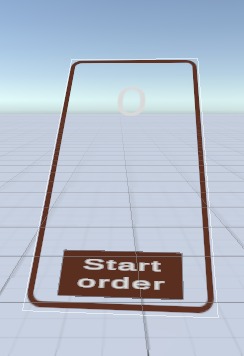
I added different elements to the menu, such as a timer for the order, an image border, and a button, which has two states: start and check order.
Attaching to wrist & Positioning
After creating the menu as a prefab, I attached it to the wrist of the player. I did this by dragging the making the prefab a child of the Left Controller in XR Rig > Camera Offset.
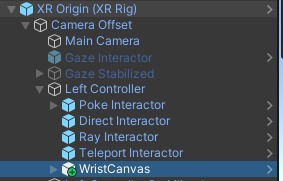
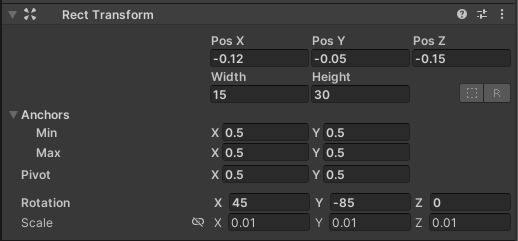
The menu was not positioned correctly, so I had to start the game and adjust the position of the menu. I did this by changing the position of the menu in the inspector. I also changed the rotation of the menu and angled it a bit, so that it would be facing the player.
Toggle menu on/off
The player might not want to have the menu active at all times, so I added the toggle functionality on the menu button of the left controller.
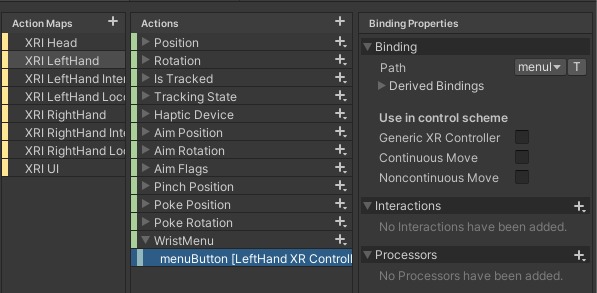
To do this, I had to go to "XRI Default Input Actions" and add a new action. I called it "WristMenu" and set the type to "Button". I then added the action to the menu button of the left controller.

After that, I added a script to the WristCanvas prefab and attached the XRI Default Input Actions. Unity automatically handles toggling the menu on/off when the "Menu" button is pressed.
Conclusion
The process of creating a wrist UI menu was straightforward. The most challenging part is figuring out the functionality of the menu, but attaching it to the wrist of the player was quite easy.
I will be talking about the functionality of the menu in the next blog post.